Using the Trend Tool in Run Mode
Note: You can change configuration settings for this tool in Run mode. However, these settings usually only persist for the current runtime session. When you close the CygNet Studio screen on which the tool resides, the tool settings may revert to those originally configured in Edit mode.
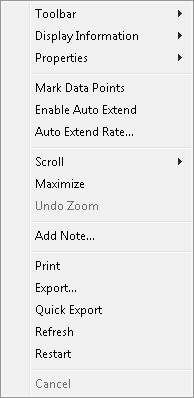
The Trend Tool has numerous Run mode options. To access available Run mode options, right-click on the trend object in Run mode to open its context menu.
|
Trend Tool - Context Menu |
For more information, see Using a ListView Control to Select Trends to Display.
Run Mode Options
The following table lists and describes the controls available in Run mode for the Trend Tool.
| Option | Description |
|---|---|
|
Toolbar |
The Toolbar option enables you to display a toolbar above or below your trend. Available context menu options are as follows:
Use Depress Click |
|
Display Information |
The Display Information option enables you to choose a special mode by which to display data. Note: You can double-click any plotted point to open the Point Properties record for that point. From there, you can access the point's configuration record by clicking Point Configuration. Available context menu options are as follows:
|
|
Properties |
The Properties option provides Run mode access to trend properties. Available context menu options are as follows:
|
|
Mark Data Points |
The Mark Data Points option enables you to display a black dot at each place that a plotted point occurs along a series. Note: Using Mark Data Points in conjunction with the Square Wave or Extend Last Value options might result in inauthentic points for the purposes of enabling those options. Conversely, using Mark Data Points in conjunction with the Data Thinning option might result in fewer displayed data points. |
|
This option enables a trend to progress forward in time even if the latest poll has not yet occurred. When the next poll occurs, the series line updates to reflect the slope change, if any. The intervals at which the trend moves forward are defined in Run mode using the Auto Extend Rate settings. In Edit mode, they are defined on the Data page. When in use, Enable Auto Extend causes most Properties options to be dimmed. Disable auto extend to access Properties. You can use Enable Auto Extend in conjunction with Extend Last Value. Doing so allows the trend to move forward in time while displaying a series from its latest plotted point up to the latest time displayed on the trend. |
|
|
This option is used in conjunction with Enable Auto Extend. The intervals at which the trend moves forward are defined in Run mode using the Auto Extend Rate settings. In Edit mode, they are defined on the Data page. |
|
|
Scroll |
Use the Forward and Backward options to scroll according to the predefined intervals. You can also use In Run mode, scroll sizes are defined by doing the following:
In Edit mode, scroll sizes are defined by doing the following: |
|
For an embedded Trend Tool, check Maximize or press M to enlarge a trend to fill your computer screen. Uncheck Maximize, press M, or press F11 to return the trend to its original size. For a default trend, check Maximize, press M, double-click the trend's title bar, or press F11 to enlarge the trend to fill your computer screen. Uncheck Maximize, press M, double-click the trend's title bar, or press F11 to return the trend to its original size. |
|
|
Undo Zoom
|
The Undo Zoom option returns a screen to its unzoomed state; it is only enabled after you have zoomed. To zoom, left-click on a trend and continue holding down the mouse button while you draw a zoom area. Release the mouse button when you have drawn the desired zoom area. You can zoom multiple times over the same area. To unzoom, right-click on the trend and click Undo Zoom; you cannot incrementally zoom out. Refreshing the trend automatically returns it to 100%, if zoomed. Enabling auto-extend also automatically returns the trend to 100%, if zoomed. You can use the mouse scroll button to scroll forward and backward in time when zoomed. You can also middle-click and drag. |
|
If applicable, add an annotation to a Trend Tool. See also Notes. Note: In Edit mode misspelled words will be underlined with a red wavy line; right-click the word to select a suggested correction from the system dictionary. Spell check is only available in a CygNet installation running on Windows Server 2016 and above. The system dictionary is located under %AppData%\Microsoft\Spelling. |
|
|
|
Click Print to print the displayed trend. |
|
Export |
The Export option enables you to export a trend in one of several file formats, most of which are graphics files. Depending on the file type selected, additional options might appear on the Exporting X dialog box. The Text/Data option leads to an additional dialog box that enables the configuration of the exported text/data file. This includes being able to select specific data points on a point-by-point basis. The Export option is unavailable if you are in Auto Extend mode. See Exporting Trends for more information. |
|
Quick Export |
Select Quick Export to export the labels and data of each series directly to a temporary comma-separated value file (CSV). Save to a location of your choice. See Exporting Trends for more information. |
|
Refresh |
Updates the trend screen. Refreshing the trend automatically returns it to 100%, if zoomed. |
|
Restart |
Two Restart options are available as follows:
|
|
Cancel |
Stops an in-progress data retrieval. |

 to scroll forward and backward through trend time.
 to begin
  to open the View Window dialog box, where you can
 More:


